Showing posts with label linux. Show all posts

Sunday, December 21, 2014

Create Postage Stamp Window Border Theme in XFCE

I noticed that XFCE window themes allow transparent (color: None), so I thought it would be funny to create a postage stamp window border.  This was tested on Xubuntu 14.04

# The theme is based on greybird.  Copy the theme to a new one called 'bumpy'

cd /usr/share/themes/

sudo cp -r Greybird bumpy

cd bumpy/xfwm4/


# then update the border files

sudo vi left-active.xpm


/* XPM */
static char * left_active_xpm[] = {
"8 24 3 1",
"  c None",
". c #cecece",
"x c #939393",
"x.......",
" x......",
"  x.....",
"   x....",
"   x....",
"  x.....",
" x......",
"x.......",
"x.......",
" x......",
"  x.....",
"   x....",
"   x....",
"  x.....",
" x......",
"x.......",
"x.......",
" x......",
"  x.....",
"   x....",
"   x....",
"  x.....",
" x......",
"x.......",
};

sudo vi bottom-active.xpm

/* XPM */
static char * left_active_xpm[] = {
"23 8 3 1",
"  c None",
". c #cecece",
"x c #939393",
"........................",
"........................",
"........................",
"........................",
"...xx......xx......xx...",
"..x  x....x  x....x  x..",
".x    x..x    x..x    x.",
"x      xx      xx      x",
};


sudo vi right-active.xpm


/* XPM */
static char * left_active_xpm[] = {
"8 24 3 1",
"  c None",
". c #cecece",
"x c #939393",
".......x",
"......x ",
".....x  ",
"....x   ",
"....x   ",
".....x  ",
"......x ",
".......x",
".......x",
"......x ",
".....x  ",
"....x   ",
"....x   ",
".....x  ",
"......x ",
".......x",
".......x",
"......x ",
".....x  ",
"....x   ",
"....x   ",
".....x  ",
"......x ",
".......x",
};


sudo vi bottom-left-active.xpm 


/* XPM */
static char * left_active_xpm[] = {
"16 16 3 1",
"  c None",
". c #cecece",
"x c #939393",
"xxxxxxxx        ",
"xxxxxxxx        ",
"xxxxxxxx        ",
"xxxxxxxx        ",
"xxxxxxxx        ",
"xxxxxxxx        ",
"xxxxxxxx        ",
"xxxxxxxx        ",
"xxxxxxxxxxxxxxxx",
"xxxxxxxxxxxxxxxx",
"xxxxxxxxxxxxxxxx",
"xxxxxxxxxxxxxxxx",
"xxxxxxxxxxxxxxxx",
"xxxxxxxxxxxxxxxx",
"xxxxxxxxxxxxxxxx",
"xxxxxxxxxxxxxxxx",
};


sudo vi bottom-right-active.xpm

/* XPM */
static char * left_active_xpm[] = {
"16 16 3 1",
"  c None",
". c #cecece",
"x c #939393",
"        xxxxxxxx",
"        xxxxxxxx",
"        xxxxxxxx",
"        xxxxxxxx",
"        xxxxxxxx",
"        xxxxxxxx",
"        xxxxxxxx",
"        xxxxxxxx",
"xxxxxxxxxxxxxxxx",
"xxxxxxxxxxxxxxxx",
"xxxxxxxxxxxxxxxx",
"xxxxxxxxxxxxxxxx",
"xxxxxxxxxxxxxxxx",
"xxxxxxxxxxxxxxxx",
"xxxxxxxxxxxxxxxx",
"xxxxxxxxxxxxxxxx",
};


Now, your windows have postage stamp borders:


Sunday, December 14, 2014

Xubuntu 14.04 vs Linux Mint 17

I had been running Ubuntu on the desktop for a couple years.  For the last couple months I've been using both Xubuntu on my laptop and Linux Mint (Cinnamon) on my desktop.  Both are great desktop distros.  Here's a quick summary of the differences I've seen between the two.

Features: I like both distros Mint and Xubuntu and view them as roughly tied.   Generally Mint has more features, though a few areas feel like they could use more polish.   But this makes sense because Cinnamon a relatively new interface compared to XFCE, and it's not an official Canonical release.   Xubuntu is a bit leaner (fewer bells and whistles), but it is a very polished, light weight and a reliable workhorse OS.    Xubuntu is a bit like the Gnome2 desktop, possibly trimmed down.  In some ways, Xubuntu feels like Linux from the old days.   Some people might like this aspect of XFCE, though I can equally see how others might not.   XFCE reminds me both of Gnome2 (which was nearly flawless IMO) and my Redhat Linux desktop 15 years ago.   XCFE tends to take the more classic Unix approach of "one-tool-does-one-job."

Speed:  I like that XFCE let me easily turn off all desktop effects, including the compositor.  I don't see a way to disable compositor in Mint.  So, I would expect Xubuntu would run a little faster on older hardware.  Standards application load a hair faster in XFCE, such as Thunar file manager -- these applications are a bit more lean (fewer features).  Though I was surprised that some applications such as Chromium browser actually seem to load a hair faster in Mint (maybe because gnome dependencies?).   Overall though, on a normal computer, I don't notice much difference in speed between the two.

Menus/panels:  The only issue I've run into with Mint is in using Citrix Receiver, the bottom menu bar in  Cinnamon is always visible.  So, if I'm connected to a remote Windows machine, the Cinnamon menu sits on top of the Windows menu.  I haven't found a work around for this.  I see a similar issue in Xubuntu, but I can just select "Always On Top" from the menu bar, to bring the Citrix window to the front.  While XFCE *looks* slightly simpler, it seems to be remarkably configurable, and can do things that Unity can't even do (for example, move the menu bar to the bottom of the screen).

Repository integration: Xubuntu's software center is a bit sluggish to load, though I do like that I can install multiple applications from the listing.  Mint's software center runs faster, though I have to click the details page before I can install any application (a little more tedious).  I like the built-in ratings, but overall, both the GUI's are possibly harder to use than Synaptic Package Manager (or even the command line).

Upgrades: Xubuntu allows upgrades on a system (in-place), where Mint requires a full reinstall.   Granted, upgrades aren't always 100% reliable, so it might be best to avoid full upgrades.   But overall, the integration with Canonical's software repository feels a bit tighter in Xubuntu.  I  actually like that it prompts when updates are available.  In Mint, I have to remember to manually check for both software and kernel updates.

Default File Manager: Mint uses nemo and Xubuntu uses thunar.   Nemo includes a lot of conveniences out-of-the-box.

If I rename a file in the file browser, Mint functions exactly how  I'd expect -- the file is renamed in place.   Xubuntu (thunar) will pop up a new window that prompts for the filename.  I thought this pop up was odd, though it allows selecting multiple files to do a bulk rename.

I like that Mint makes it easy to create bootable USB flash drives (just right click on an ISO file).   I've never used these very much before, though having this baked into the file manager is nice.  It saves a lot of burnt cds and dvds when testing out software.

In Xubuntu, to get a similar convenience I had to install a usb package UNetbootin.  Open  thunar and go to Edit -> Configure Custom Actions, then add a custom command for *.iso files:

   unetbootin method=diskimage isofile=%f

The Thunar custom actions are saved in your home directory in the file .config/Thunar/uca.xml.   An alternate usb package is usb-creator-gtk (it looks nice, but only seems to work for Ubuntu iso's).

Similarly, Mint (with nemo) makes it a bit simpler to share folders over a network: right click on a folder and you have an option to share it.  In Xubuntu (thunar) you'll have to install packages samba and system-config-samba to manage shares.  Then tools are under the System settings.

There are not many default bookmarks (aka shortcuts)  in thunar's sidepane, though it is easy to add them if needed: right click a folder -> Send To -> Side Pane (create shortcut).

So, initially I wasn't a fan of thunar, though the missing functionality does make sense.  Thunar avoids duplication of system administration functionality,  yet it does make it fairly simple to add custom functionality if needed.  It is a valid question how much functionality/weight should be placed in the file manager if these operations are used infrequently.  

Firefox: I was surprised there's a prominent bug in Firefox in Mint, given that Firefox runs fine in all other versions of Ubuntu, and a browser is such a critical application.  For example: if I close multiple tabs, Firefox will prompt me if I want to save the multiple tabs -- every single time.  I check the box to stop prompting me, but it never remembers the preference.  The fix is simple (delete a config file), though it concerns me how this sort of bug is introduced and not patched, if the software is supposed to be 100% compatible with Ubuntu's repo's.

Codecs: In xubuntu, you have to install the package xubuntu-restricted-extras if you want all the proprietary codecs and fonts.  In Mint the codecs are already included.

Window borders: The standard Greybird theme in Xubuntu has 1px window borders which makes it nearly impossible to grab and resize the window.  There are a couple workarounds for this, though I wish there was an invisible region around the window border, like in Gnome.  Window borders in Mint are easier to use for resizing.  I had to tweak the theme in Xubuntu to use slightly thicker borders.

Default color schemes: Mint uses a green color scheme, which looks a little bit like whitish-green mint toothpaste to me.  I spent some time trying to change this to something else, but I didn't see an easy way to fundamentally change the color theme mint.  Most of the themes in the admin area seem to only change the menu launcher and window borders.  I did install another color theme, though to me all the choices looked over-saturated.  Eventually I just got used to the toothpaste colors in Mint.  Though this might be like the brown colors in Ubuntu.  Initially I thought Ubuntu was the ugliest distro I'd ever seen, though I got used to the brown and eventually missed the brown when they moved to pink and purple.  :)  Xubuntu's choice of colors -- blue, black, grey --  is probably a safer route.  Overall it looks clean.

Default Icons: I like the default Mint icons, especially for the home folder.  The Mint icons have a bit more variety, where the default Xubuntu icons are only one color.   Xubuntu does include the clean "Humanity" icons from core Ubuntu (though probably should include a blue-themed version).  I installed the package elementary-icon-theme from the repos.  

Default backgrounds: As superficial as a background is, it's fairly important in getting a first impression of a distro.   Initially, the first time I installed Mint, I thought it looked like a wash of confusing grey.  But when I changed the background to something darker, it became much easier to visually process.  So, I am not a fan of the light backgrounds when using a light grey window theme.  To me, it's too hard to see where the window stops and the background begins.  Also, I don't like backgrounds with too much complexity.  Personally, I just prefer darker blurry backgrounds to help make the windows stand out.  In this regard I wish Mint had some more options on the default backgrounds.  Xubuntu's default background is good enough, I never changed it.  In comparison, Fedora probably has the best collection of wallpaper's I've seen to date.

Mouse Scrolling: One unusual feature with XFCE is how it handles mouse scrolling.  When you scroll with the mouse, focus is transferred to the window the mouse pointer is above.  This is slightly different behavior than Mint/MS Windows, where focus only transfers to another window if you click it.  This might make it confusing if you move the mouse scroll button over the desktop background ... XFCE will cycle through the desktops.

Linux Mint XFCE: I only briefly looked at running XFCE on Mint.   Though, given that Xubuntu can be upgraded (usually LTS upgrades are painless) and Mint cannot be upgraded, I didn't see a whole lot of advantage of running XFCE on Mint vs plain old Xubuntu.  Any missing packages I install in Xubuntu would take less time than re-installing the whole Mint OS. 

Saturday, December 13, 2014

Increase Window Border Size in Xubuntu 14.04 Greybird Theme

I've been testing out Xubuntu 14.04 lately and I like the default Greybird theme.  Though I wondered how to change the width of the window borders.  By default the window borders are very thin -- only 1px wide -- making it nearly impossible to grab with a mouse and resize. 

TLDR:  If you just want a quick way to increase the border size, go to Settings -> Window Manager -> select Daloa.  Or try a couple different themes.  This will give you thicker window borders.

Granted, you can also resize XFCE windows a couple ways:

     http://xubuntu.org/news/window-resizing-in-xubuntu-and-xfce/


How Themes Work 

This section will explain how to customize the window borders in Greybird (or any theme).  

Here's a short article that explains how the theming works:

     http://wiki.xfce.org/howto/xfwm4_theme


The visual components are apparently defined as XPM3 files.   Overall, the file format is like ASCII art, where the characters can be mapped to colors.  For example, here is ASCII art representing the text "HI"
 x x  x
 xxx  x
 x x  x
The art is then wrapped in a syntax like C-code to describe the meta data. I'll define a 8x3 image having two colors.  It will using two characters ' ' (space) and 'x' for the ASCII art.  Below, the text in /* */ are comments that explain the file format: 


/* XPM */ 
static char * YOUR_VARIABLE[] = {
/* define a 8x3 image: width height colors chars_per_pixel */ 
"8 3 2 1",
/* define your colors: your_character c RGB_value, where 'c' is a literal */
"  c #ffffff",
"x c #000000",
/* now define the ascii art: rows of characters */
" x x  x ",
" xxx  x ",
" x x  x "
};

Then, if you look at the text, you can visually get a feel of the image ("HI"). The characters ' ' and 'x' are just defined to represent two different RGB values. Any two characters could have been used.


Here are two ways to increase the border size:


Method 1: Patch existing theme


To patch the Greybird Window borders, find the theme XFCE files under:
cd /usr/share/themes/Greybird/xfwm4/

Then, back up the files and try tweaking.  I'll increase the width to 4px and add a one pixel dark border.


sudo vi left-active.xpm
/* XPM */
static char * left_active_xpm[] = {
"4 24 2 1",
".      c #CECECE",
"x      c #7C7C7C",
"x...",
"x...",
"x...",
"x...",
"x...",
"x...",
"x...",
"x...",
"x...",
"x...",
"x...",
"x...",
"x...",
"x...",
"x...",
"x...",
"x...",
"x...",
"x...",
"x...",
"x...",
"x...",
"x...",
"x...",
"x..."};
sudo vi right-active.xpm
/* XPM */
static char * right_active_xpm[] = {
"4 24 2 1",
".      c #CECECE",
"x      c #7C7C7C",
"...x",
"...x",
"...x",
"...x",
"...x",
"...x",
"...x",
"...x",
"...x",
"...x",
"...x",
"...x",
"...x",
"...x",
"...x",
"...x",
"...x",
"...x",
"...x",
"...x",
"...x",
"...x",
"...x",
"...x"};
sudo vi bottom-active.xpm
/* XPM */
static char * bottom_active_xpm[] = {
"24 4 2 1",
".      c #CECECE",
"x      c #7C7C7C",
"........................",
"........................",
"........................",
"xxxxxxxxxxxxxxxxxxxxxxxx"};

sudo vi bottom-left-active.xpm
/* XPM */
static char * left_active_xpm[] = {
"8 8 3 1",
"  c None",
". c #cecece",
"x c #7c7c7c",
"x...    ",
"x...    ",
"x...    ",
"x...    ",
"x.......",
"x.......",
"x.......",
"xxxxxxxx" };
sudo vi bottom-right-active.xpm
/* XPM */
static char * left_active_xpm[] = {
"8 8 3 1",
"  c None",
". c #cecece",
"x c #7c7c7c",
"    ...x",
"    ...x",
"    ...x",
"    ...x",
".......x",
".......x",
".......x",
"xxxxxxxx" };

To trigger a refresh, you can run (in a terminal, as your user):


     xfwm4 --replace

The larger window borders look like:


So now the window borders are larger, easier to see and grab.


Also if you look at other themes, you'll notice the color definitions include a 'c' and an 's' value:


    "   c #CECECE s inactive_hilight_1",

The 's' is a gtk color name (as in the string or symbol).  If defined, it will override the hard-coded color.

Disclaimer: It would be better to copy the files and create a new theme.  Otherwise, you can deselect and reselect the window manager theme in your settings to reload it fully.


If the borders look dashed (due to video card rendering), you can increase the size of the image to improve tiling:
left and right:  4x24 px 
bottom: 24x4 px 
corners: 16x16 px

Method 2: Or, copy thick borders from existing theme Daloa

Daloa borders are 5px, and include a highlight.

# find your themes
cd /usr/share/themes

# Create copy of Greybird
sudo cp -r   Greybird   Greybird-thick

# copy borders from Daloa to new theme
sudo cp Daloa/xfwm4/bottom-active.xpm    Greybird-thick/xfwm4/
sudo cp Daloa/xfwm4/bottom-inactive.xpm     Greybird-thick/xfwm4/
sudo cp Daloa/xfwm4/left-active.xpm    Greybird-thick/xfwm4/
sudo cp Daloa/xfwm4/left-inactive.xpm    Greybird-thick/xfwm4/
sudo cp Daloa/xfwm4/right-active.xpm    Greybird-thick/xfwm4/
sudo cp Daloa/xfwm4/right-inactive.xpm    Greybird-thick/xfwm4/
sudo cp Daloa/xfwm4/bottom-left-active.xpm    Greybird-thick/xfwm4/
sudo cp Daloa/xfwm4/bottom-left-inactive.xpm    Greybird-thick/xfwm4/
sudo cp Daloa/xfwm4/bottom-right-active.xpm    Greybird-thick/xfwm4/
sudo cp Daloa/xfwm4/bottom-right-inactive.xpm     Greybird-thick/xfwm4/


# look at the colors defined in Daloa's bottom-active.xpm:
# "       c None",
# "+      c #E0E0FF",
# "@      c #A0A0FF",
# "$      c #B0B0B0",
# "#      c #C0C0C0",
# "########################",
# "########################",
# "########################",
# "++++++++++++++++++++++++",
# "@@@@@@@@@@@@@@@@@@@@@@@@"};


# Find/Replace the colors in the new theme with grey colors

sudo sed -i -e 's/C0C0C0/CECECE/'  Greybird-thick/xfwm4/*
sudo sed -i -e 's/A0A0FF/7C7C7C/'  Greybird-thick/xfwm4/*
sudo sed -i -e 's/E0E0FF/E0E0E0/'  Greybird-thick/xfwm4/*

# now update your theme
Settings -> Window Manager -> Pick the new theme "Greybird-thick"

# your new borders look like:


Wednesday, December 10, 2014

GNU/Linux and Google Trends


I noticed something interesting looking at Google Trends -- it looks like GNU/Linux searches are decreasing over time:


From:
http://www.google.com/trends/explore#q=%2Fm%2F03x5qm%2C%20%2Fm%2F0fpzzp%2C%20%2Fm%2F02wxtgw&cmpt=q


Though this strikes me as odd... since as of 2014, GNU/Linux probably holds the market shares (roughly):

  1. desktops:  1.5%
  2. servers:  40%
  3. smart phones/tablets: 84%
  4. super computers:  97%
From:

Also, most of these market shares are steady or gradually increasing.  Even on the desktop -- the smallest usage -- the market share has slowly inched up from 0.5% over the past ten years.  If there are 7 billion people on Earth, and about 5% own a computer,  that would mean roughly 5 million people are running Linux on the desktop now.  So why would Google trends be decreasing?  This seems to contradict all the other trends I've seen.

My guesses (based on my own search patterns)

1.  The numbers mean something different than what might be expected.  According to Google Trends, "A downward trending line means that a search term's popularity is decreasing. It doesn't mean that the absolute, or total, number of searches for that term is decreasing." So plausibly, now there are more people online searching for other things.  

2. The need for searching has changed.  About 15 years ago, when I started using Linux, I'd have to make a lot of continuous tweaks to get everything working the way I wanted.  Almost every installation resulted in multiple hardware or configuration problems.  Now, I install Linux and everything "just works" for me.  So I do very few searches now compared to ten years ago.  

3. General search terms are not needed.  I don't usually search for a broad term like 'linux' anymore.   I don't need to include it.  Usually I'll search for something much more specific.   

4. The web itself has become more specialized.  I'm more likely to check specific websites (like stackexchange, or distro forums) for answers rather than searching over the entire interwebs.   

So, if I restrict the trends to look at just YouTube stats, the trends look a bit more like what I'd expect from other stats -- a stable or slightly increasing line:


So, using  Google Trends (on the entire web) is not  a very accurate measure of overall interest or market share of technology.   Generally the numbers don't mean what might be assumed, since the search terms are competing against all popular searches.  For example: Linux vs Pop Celebrity of the Week or the latest Playstation Games :-).  

What might make the numbers more useful is to use one term as a base line, and normalize all other numbers relative to it.   For example, adding Windows as a baseline, and restricting the category to "Software > Operating Systems," it generally looks like searches are becoming less "techie" over time.  


Overall then, Ubuntu seems to have matched Linux in general search interest.  Also the gap between Windows and Linux is generally decreasing.  Which makes more sense.

In summary, Google Trends can offer some information, but it's fairly easy to misinterpret.  For example,  "android" has spiked in searches (see first graph), but "android" is really just a more specific type of "linux" search.  

Monday, May 16, 2011

Tablature software for guitar, mandolin, etc

I've been testing out some tablature software and was pretty happy with TuxGuitar.  I downloaded a ".tef" file (for a mandolin song), and was able to import and hear it with no problems.  TuxGuitar also has an optional neck view, to step through the finger positions.

On Ubuntu, there was an older version in the repository, so I downloaded the newest 1.2 version directly from the website:


There's also a java version online as well, but I haven't tested it out.

Thursday, August 5, 2010

File Encryption on the Command Line and a Secure Text Editor

Update: I added this script to github at:
https://github.com/sevkeifert/text-utils/blob/master/svi


A while back I needed a really simple way to encrypt a password file on the command line. I wanted to be able to write quick, simple scripts, with no more than one line of code handling the file encryption part. So, in Linux or Windows (using cygwin), I used these aliases:

# for simple encryption methods, use:
#     echo "text" | encrypt
#     echo "U8askj123lkjasdflkjasdlkjargoi+/==" | decrypt

alias encrypt="openssl aes-256-cbc -a -salt"
alias decrypt="openssl aes-256-cbc -d -a -salt"


Then other quick shell scripts can easily encrypt/decrypt files as needed.

However, while this works, it was still a nuisance to actually edit and maintain the encrypted files. Here's an alternate approach that will work under Linux or Windows (using cygwin). It wraps the classic vi text editor, or any editor for that matter, in a shell script that opens and saves files in any standard encryption format (like aes 256), which can then be decrypted by other script utilities. Also, it will save an encrypted snapshot of the file every day it's updated in case you mangle the password or file.

Here's the bash script, which can be saved to /usr/local/bin/svi

#!/bin/bash
# A simple secure vi editor, for aes encrypted files
# file name passed in as argument, for example
#     svi FILENAME
# to open file as read only
#     ln -s svi sview
#     sview FILENAME
# GPL

# type of encryption
cipher=aes-256-cbc

# where temp files will be decrypted
tmp=/tmp/


# create tmp dir/file
me=`basename $0`
dir=`dirname "$tmp$1.tmp"`
mkdir -p "$dir"
touch "$tmp$1.tmp"
chmod 600 "$tmp$1.tmp"

# decrypt to tmp
if [[ -e "$1" ]]
then

 if openssl $cipher -d -a -salt -in "$1"  > "$tmp$1.tmp"
 then
   if [[ ! -s "$tmp$1.tmp" ]]
   then
     echo "WARNING: decrypted an empty file, exiting."
     exit
   fi
 else
   echo "WARNING: bad password, exiting."
   exit
 fi

fi


if [[ $me == 'sview' ]]
then
 # open file read only
 vi -n -R "$tmp$1.tmp"

else
 # open file for editing
 vi -n "$tmp$1.tmp"

 # re-encrypt after exiting vi
 if [[ -s "$tmp$1.tmp" ]]
 then
   touch "$tmp$1.aes"
   chmod 600 "$tmp$1.aes"
   while [[ ! -s "$tmp$1.aes" ]]
   do
     openssl $cipher -a -salt -in "$tmp$1.tmp" > "$tmp$1.aes"
   done

   # make backup, replace old
   if [[ -s "$tmp$1.aes" ]]
   then
     if [[ -s "$1" ]]
     then
       cp -pf "$1" $1.$(date "+%Y-%m-%d").bac
     fi
     mv -f "$tmp$1.aes" "$1"
   fi
 fi

fi

# cleanup
shred -z -u "$tmp$1.tmp"
rm -f "$tmp$1.aes"


Then for example, to open or create a new encrypted text file, use:

svi  YOUR_FILE


Disclaimer

Overall, this is a reasonably simple and secure method for protecting files, in the case a laptop is lost or stolen. The strength is that these files can be transferred across or stored on insecure media.

As for weaknesses though, this does create a decrypted copy of the file on the local computer while it is being edited. And the temp file, even if deleted (unlinked), may leave an image on the local disk. Another weak point is that insecure memory could be flushed to swap space on the hard disk.

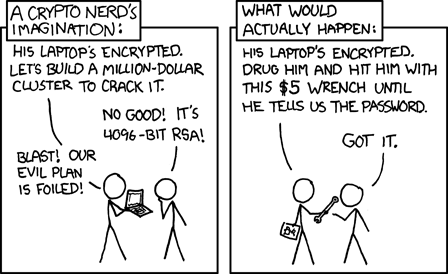
And, as with any encryption cipher, it can be always broken with the old "wrench" method.... :)


(comic courtesy of xkcd)

Saturday, May 15, 2010

Ubuntu 10.04 released!

I just upgraded to the new version. As with the last release, the operating system is integrated with the net, with a repository of 30,000 free software packages (one click install), and 2GB of free cloud storage.


Also, I like the integrated music store in the RhythmBox media player, where people can either purchase music, or artists can submit music. There's two music hosting services for artists: Jamendo (where music is essentially submitted as free/public domain), and Magnatune (with traditional music rights going to the artist).


Also, I'm happy with WINE (windows emulator) where I can run my older Windows applications, like Macromedia Flash 5. It's still a little hit-and-miss on the most recent Windows applications (where the emulator hasn't caught up) but I've found it runs older Windows programs better than Windows. I popped in an old Windows 95 game the other day, and it ran flawlessly.


Wednesday, December 30, 2009

Creating udev rules on Linux

I spent some time figuring out how to customize behaviour when hot pluging devices on linux, so I might as well post my notes in case I forget. :)

You can use udev to trigger events, to write custom linux scripts for hot plugged device.

Here's one of the more clever ideas with custom hotplug scripts using a standard usb stick as a key to unlock the computer. This will secure a workstation to only the person with the key:

http://raftaman.net/?p=300

Here's a simple example of writing a custom image processor for a camera (most cameras are already supported, but this is an example from the ground up).

Basically what is needed is:

a. figuring out the name of the device on the system
b. figuring out the full signature of the device
c. writing a rule to match the signature
d. writing a program that will be triggered

First you have to figure out the name of the device on the system. When the device is unplugged, take a snapshot of all the device on the system. IMO an easy way is to look at the /sys/ directory. It will contain nodes for all hotplugged devices. First take a snapshot when the device is unplugged.

find /sys > /tmp/dev_out.txt

Then plug in the device, and take another snapshot:

find /sys > /tmp/dev_in.txt

Now you can compare the differences in the two snapshots. Note that one physical device can actually be several devices (for example if it has multiple partitions). You will want a short name.

diff /tmp/dev_out.txt /tmp/dev_in.txt

An alternate way to find the name of device nodes, run this, and plug in device.

udevadm monitor

The name might look like /sys/path/to/device. Then get complete signature of the device:

udevadm info -a -p /sys/path/to/device

Udevadm info starts with the device specified by the devpath and then walks up the chain of parent devices... The complete signature of the device looks like a bunch of gibberish, but it's just key/value pairs:


looking at device '/devices/pci0000:00/0000:00:1f.4/usb2/2-2/2-2:1.0/host13/target13:0:0/13:0:0:0/block/sdc':
KERNEL=="sdc"
SUBSYSTEM=="block"
DRIVER==""
ATTR{range}=="16"
ATTR{ext_range}=="256"
ATTR{removable}=="1"
ATTR{ro}=="0"
ATTR{size}=="429569"
ATTR{capability}=="53"
ATTR{stat}==" 87 996 1083 1820 0 0 0 0 0 1016 1820"

looking at parent device '/devices/pci0000:00/0000:00:1f.4/usb2/2-2/2-2:1.0/host13/target13:0:0/13:0:0:0':
KERNELS=="13:0:0:0"
SUBSYSTEMS=="scsi"
DRIVERS=="sd"
ATTRS{device_blocked}=="0"
ATTRS{type}=="0"
ATTRS{scsi_level}=="0"
ATTRS{vendor}=="VTech "
ATTRS{model}=="Kidizoom "
ATTRS{rev}=="1.21"
ATTRS{state}=="running"
ATTRS{timeout}=="30"
ATTRS{iocounterbits}=="32"
ATTRS{iorequest_cnt}=="0x28a"
ATTRS{iodone_cnt}=="0x28a"
ATTRS{ioerr_cnt}=="0x8"
ATTRS{modalias}=="scsi:t-0x00"
ATTRS{evt_media_change}=="0"
ATTRS{queue_depth}=="1"
ATTRS{queue_type}=="none"
ATTRS{max_sectors}=="240"

looking at parent device '/devices/pci0000:00/0000:00:1f.4/usb2/2-2/2-2:1.0/host13/target13:0:0':
KERNELS=="target13:0:0"
SUBSYSTEMS=="scsi"
DRIVERS==""

...

These two lines should basically describe the device:

ATTRS{vendor}=="VTech "
ATTRS{model}=="Kidizoom "

Forming a rule is basically a matter of picking out a few lines from the complete signature and putting them all on one line seperated with commas. Files go under

/etc/udev/rules.d/

The name of the rule starts with a number (order executed) and ends with .rules
There can only be at most one parent in matching rules.
RUN will trigger a program to execute after device is mounted
ACTION can be "add" or "remove"

# EXAMPLE:
# FILE /etc/udev/rules.d/99-camera-copy.rules
# This will trigger /path/to/your/program
# when the device is plugged in
ACTION=="add", SUBSYSTEM=="block", ATTRS{vendor}=="VTech ", ATTRS{model}=="Kidizoom ", ATTRS{rev}=="1.21", RUN+="/path/to/your/program"

Also, udev will pause until the program called is finished. You can also run the program in the background to return immediately (recommended for longer processes). To detach bash script, enclose it in braces and end with &:


#!/bin/bash
{
echo "hello there" >> /tmp/udev_test.log
} &

All programs will be run as root user (full permissions). To lauch graphical programs as a regular user:

#!/bin/bash
{
# what program to run?
run=picasa
user=`who grep :0\) cut -f 1 -d ' '`
export DISPLAY=:0.0
su $user -c "xhost local:$user; $run"
} &


For more information, here's an older writeup (the tool "udevinfo" has changed to "udevadm info")

http://www.reactivated.net/writing_udev_rules.html


Also, thank you Rcspam for an example of using the kidizoom on Ubuntu 10.04+:
http://rcspamsblogen.blogspot.com/2011/01/kidizoom-and-ubuntu-maverick.html
(English)